VolunteerPress works out of the box, but three parts of a typical WordPress site are set up in ways that quietly hurt a volunteer program: the timezone, email delivery, and scheduled tasks. Each check below takes a few minutes. Do them before you invite real volunteers.
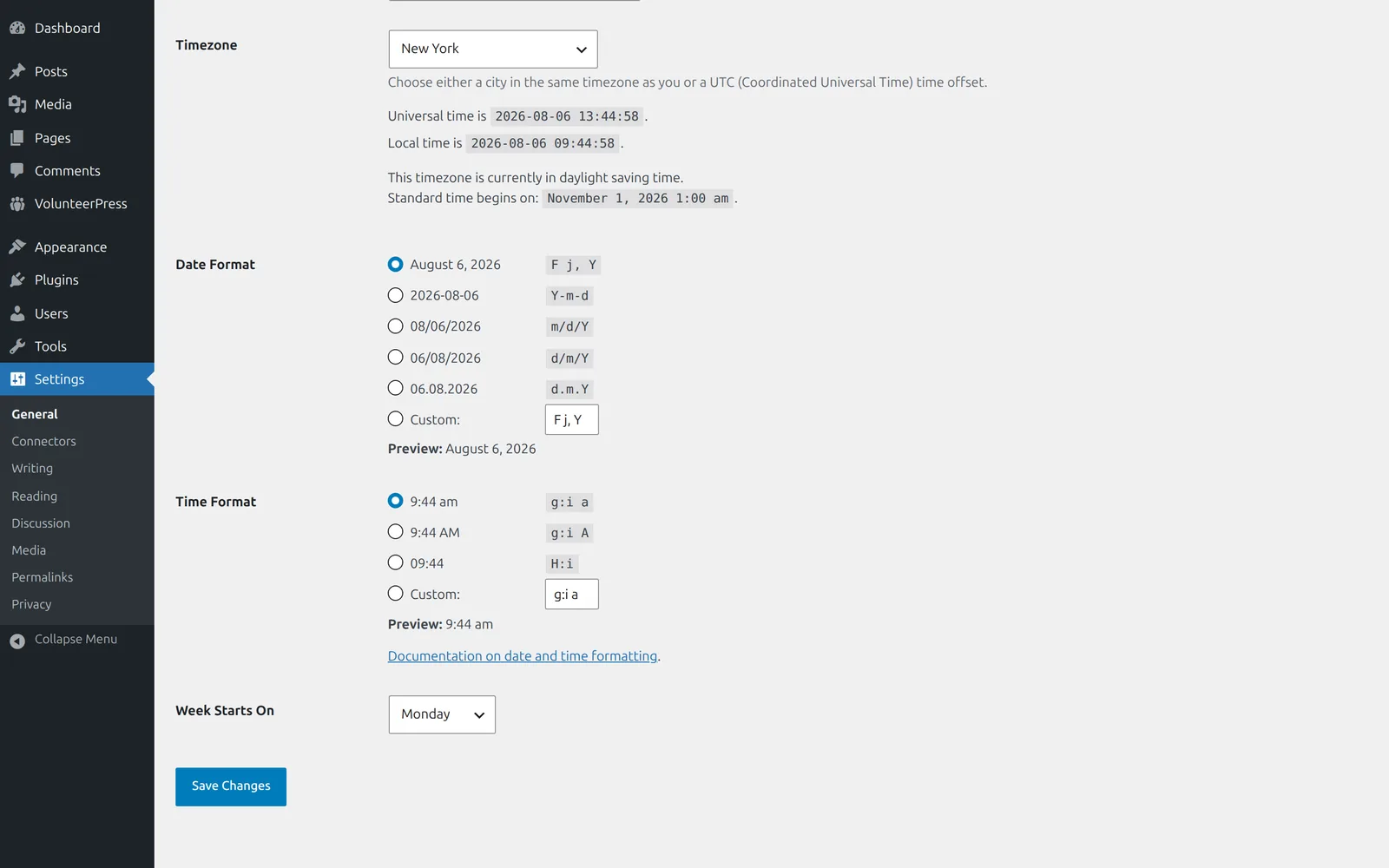
1. Set the site timezone — so the calendar shows the right day
Shift times follow your WordPress timezone. If it is still on the default (UTC), every time on your site means the wrong moment: the calendar can highlight the wrong day as “today”, and reminders go out at odd hours.
- Go to Settings → General.
- Under Timezone, choose the city nearest you (for example “Chicago”) — a city, not a “UTC−6”-style offset, so daylight saving time is handled automatically.
- Select Save Changes.
You will see shift times unchanged — a 9:00 AM shift stays 9:00 AM — but they now mean the right moment on your clock. What the setting does to existing shifts, in detail: The calendar highlights the wrong day.
2. Install an SMTP plugin — so your emails reach inboxes
By default, WordPress sends email straight from your web server, and mailbox providers treat that mail with suspicion — confirmations land in spam, or nowhere. An SMTP plugin routes your site’s email through a real mail service instead.
- Install one of WP Mail SMTP, FluentSMTP, or Post SMTP from Plugins → Add New.
- Follow its setup wizard to connect your organization’s mail account or a transactional email service (most have free tiers that cover a volunteer program comfortably).
- Sign up for one of your own shifts using a Gmail or Outlook address, and confirm the confirmation email arrives in the inbox — not the spam folder.
VolunteerPress needs no configuration for this: once an SMTP plugin is active, every VolunteerPress email goes out through it. The full deliverability checklist: Emails go to spam or never arrive.
3. Ask your host to run scheduled tasks on a timer — so reminders go out on time
WordPress only runs its scheduled tasks when someone visits your site. On a quiet site — and most volunteer sites are quiet between events — shift reminders wait for the next visitor, and can go out hours late. A server-side timer runs the schedule every few minutes regardless of traffic.
Most hosting companies set this up on request. Copy, adjust the address, and send to your host’s support:
Hi — my site at example.org runs WordPress. Could you set up a server cron job that triggers WordPress’s scheduled tasks (wp-cron) every 5 minutes? Either running “wp cron event run –due-now” with WP-CLI in the site’s directory, or fetching https://example.org/wp-cron.php?doing_wp_cron — whichever you prefer. Please let me know once it’s running, and whether I should add DISABLE_WP_CRON to my wp-config.php.
If you manage the server yourself, or want to verify what your host set up, the full instructions are in Reminder emails are late or missing.
Done
That is the whole recommended setup. From here, Core concepts explains how the pieces fit together, and the guides cover day-to-day tasks as you need them.