VolunteerPress → Email is where you write to your volunteers by hand: a reminder with directions, a thank-you after the event, a call for help on an under-filled week. This guide covers composing, choosing who receives it, and what the unsubscribe link does — and does not — affect.
Composing a message
On the Compose tab, choose an Audience:
- A shift — everyone signed up for one specific shift. Pick the opportunity, then the shift.
- An opportunity — everyone signed up for any of one opportunity’s upcoming shifts.
- All volunteers — everyone in your volunteer list.
The Status filter narrows the audience to Confirmed only or Waitlisted only — useful for “a spot may open” notes to a waitlist, or logistics that only confirmed volunteers need.
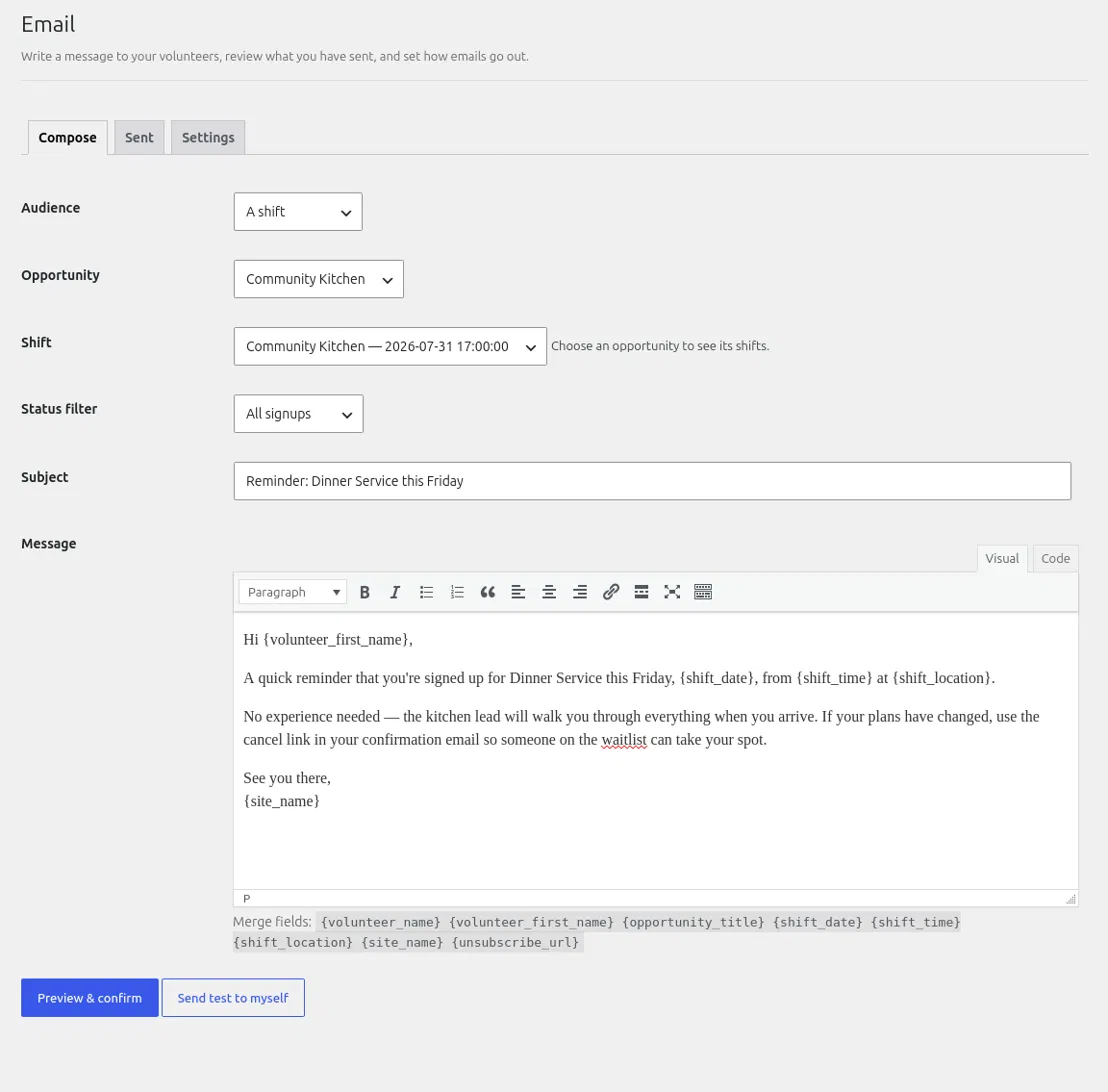
Write the subject and message as you would any email. Merge fields personalize each copy — the list under the editor shows them all: {volunteer_name}, {volunteer_first_name}, {opportunity_title}, {shift_date}, {shift_time}, {shift_location}, {site_name}, and {unsubscribe_url}. “Hi {volunteer_first_name},” becomes “Hi Sam,” in Sam’s copy.
Send test to myself emails the draft to your own address so you can check it in a real inbox. Preview & confirm shows exactly how many volunteers will receive the message and a preview with sample values; nothing is sent until you select Send now there.
Small sends go out immediately. Larger ones continue in batches — the Sent tab shows live progress (“Sending… 50 of 240 sent”) and keeps a history of every message, who it went to, and how many were reached.
Unsubscribing — what it affects
Every message sent from the Compose tab ends with an unsubscribe link, added automatically: “You are receiving this because you signed up to volunteer. Unsubscribe”. (If you place {unsubscribe_url} somewhere in your message yourself, that link is used instead of the footer.)
Unsubscribing stops these composed messages only. It never affects the emails a volunteer’s own signups produce — confirmations, shift reminders, cancellation notices, waitlist promotions, and shift-change notices all continue, because a volunteer who signed up for a shift still needs to hear about that shift. An unsubscribed volunteer simply drops out of every Compose audience; you can see who has unsubscribed on their page under VolunteerPress → Volunteers, and only the volunteer can change it, from the link in any message they receive.
Sender, reminders, and templates
The Settings tab (visible to administrators) sets the From name and address, the reply-to, how many hours before a shift the automatic reminder goes out, and the wording of each automatic email. It also holds an organization name and mailing address shown in the footer of composed messages — some jurisdictions require a postal address in promotional email. If your emails land in spam or arrive late, that is almost never a compose problem: see Emails go to spam or never arrive and Reminder emails are late or missing.