The Opportunities Calendar block puts a browsable calendar of upcoming shifts on any page. Volunteers can look over a month, open a shift, and sign up right there — without leaving the calendar.
Adding the calendar to a page
Edit any page, open the block inserter, search for “opportunities”, and choose Opportunities Calendar. Publish the page. The calendar shows every published opportunity’s upcoming shifts; there is nothing to connect or configure.
The agenda view
The calendar opens as an agenda: the current month’s shifts as a readable list, each with its date, time, opportunity, and spots remaining. This is the view volunteers use most — it works equally well on a phone, and every shift carries its Sign up button directly (or Join the waitlist once the shift is full). Selecting a shift’s button opens the signup form in place; View details goes to the opportunity’s own page.
Two buttons at the edges of the toolbar, labelled with the month names — “← June”, “August →” — move one month at a time.
The month grid
The Agenda / Month toggle in the toolbar switches to a traditional month grid of the same month. Days with shifts list them in their cell; selecting a day opens a panel with that day’s shifts and their signup buttons. Today’s date is highlighted.
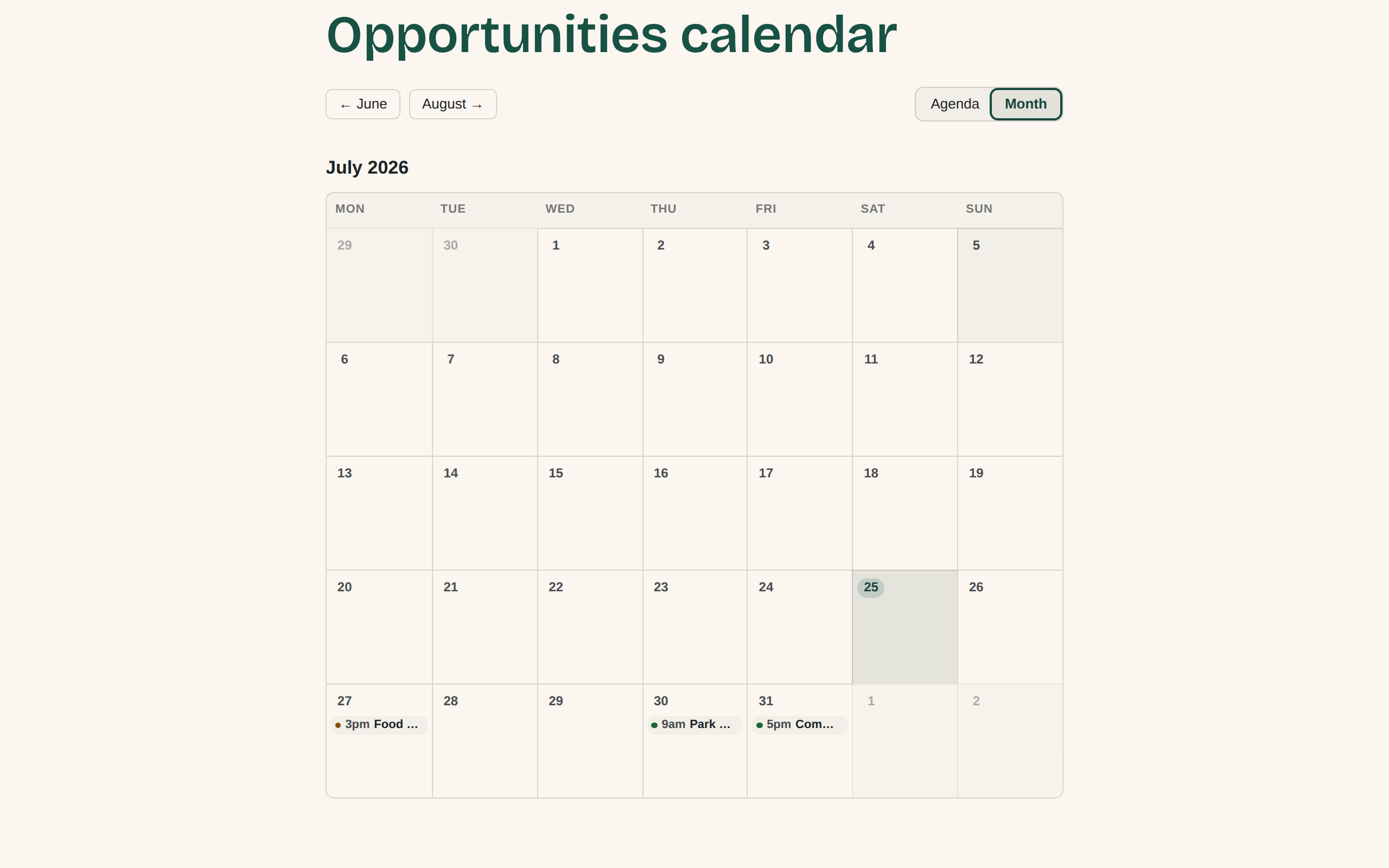
If you prefer the grid as the first thing visitors see, select the block in the editor and change Default view from Agenda to Month — that is the block’s one setting. Visitors can always switch with the toggle.
The calendar follows your site timezone
Which day is “today”, and when a shift stops accepting signups, follow your WordPress timezone setting — not each visitor’s clock. If the calendar highlights the wrong day, your site’s timezone is set wrong (usually still the UTC default): see The calendar highlights the wrong day for the two-minute fix.
If shifts you added are missing from the calendar, or spots-remaining counts look stale, the calendar itself is fine — a page cache is serving old copies of the page: see Changes don’t show on your site.