VolunteerPress → Shift signups is the working view of who is coming: every signup across every shift, with the filters coordinators reach for daily. This guide covers reading the table, the statuses, and the three actions you can take on a signup.
Reading the table
Each row is one volunteer on one shift: the Volunteer (name and email), the Opportunity — shift they chose, when they Signed up, and their Status. The newest signups are on top. A summary line above the table states exactly what you are looking at — “Showing all 124 signups”, or “Showing 8 confirmed signups for Park Cleanup from the last 7 days”.
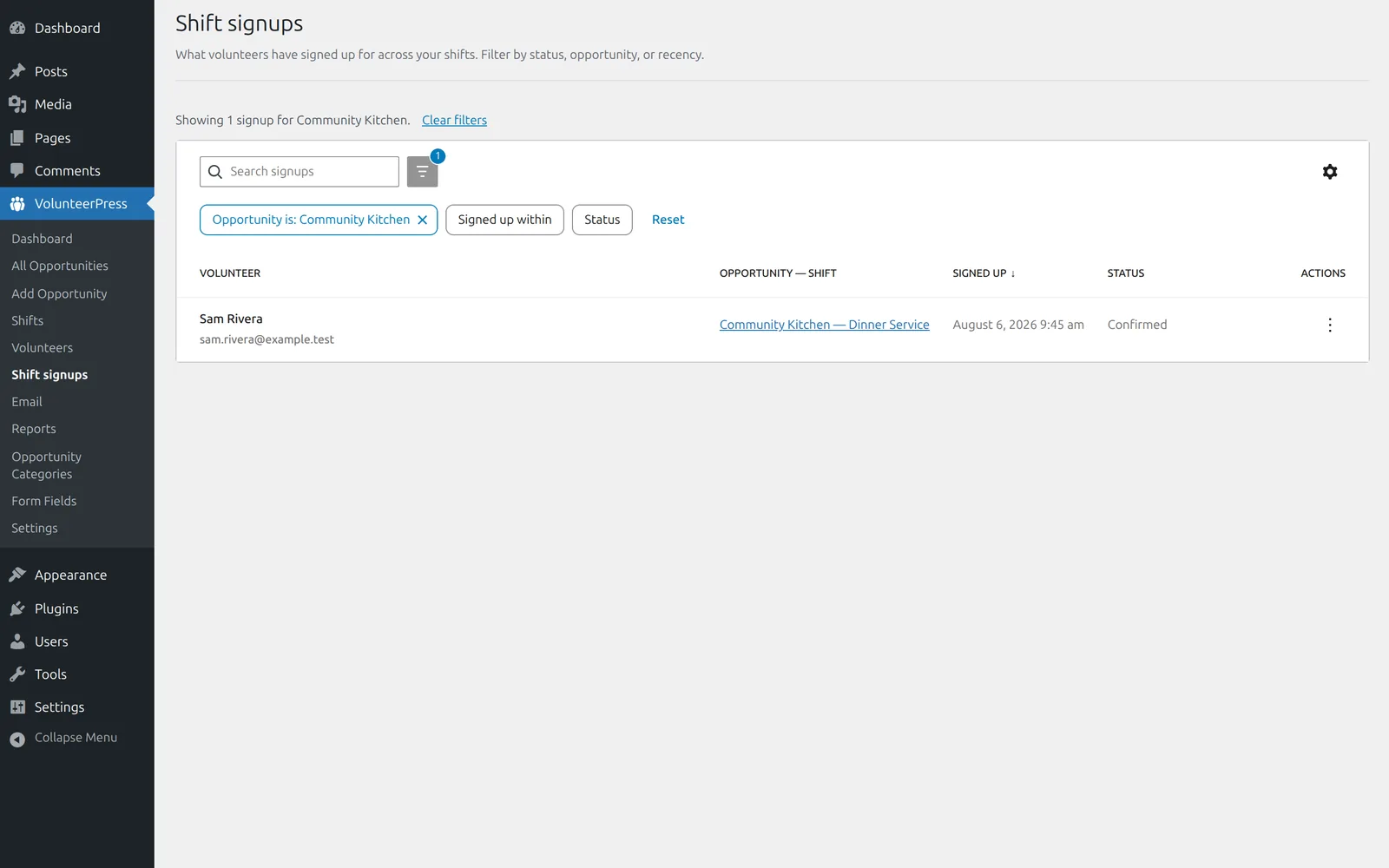
Three filters combine with the Search signups box (which matches names and email addresses):
- Status — show one status at a time.
- Opportunity — narrow to one opportunity’s shifts.
- Signed up within — Last 7 days or Last 30 days, filtering on when the signup was made. Leave it off for all time.
What the statuses mean
- Confirmed — the volunteer has a spot and received a confirmation email.
- Waitlisted — the shift was full when they signed up; they are emailed automatically if a spot opens. See Waitlists.
- Cancelled — cancelled by the volunteer or by you. The row stays in your records.
Acting on a signup
Each row’s menu offers up to four actions:
- View details — the full record: contact details, shift time and location, notes, and the volunteer’s Signup form answers if the opportunity asks custom questions.
- Confirm — appears on waitlisted signups only, and gives that volunteer a spot ahead of the automatic order if the shift has room. They receive the same email as an automatic promotion.
- Cancel signup — frees the spot and emails the volunteer that their signup is cancelled. If the shift has a waitlist, the next volunteer is confirmed automatically. The row stays, marked Cancelled.
- Delete — removes the signup and its form answers from your records entirely, without emailing the volunteer. It still frees the spot (so a waitlisted volunteer may be promoted and emailed). Use Cancel when the volunteer should hear about it; Delete is for records you do not want to keep, and cannot be undone.
Day to day
The VolunteerPress Dashboard is the quick version of this screen: today’s numbers, the shifts that still need volunteers, and recent signups. For a spreadsheet, the Dashboard’s Export signups button downloads every signup as a CSV file. Each volunteer’s full history — every shift they have taken across all opportunities — lives under VolunteerPress → Volunteers; select a name to see it.
To email some or all of these volunteers, see Emailing volunteers.