This guide covers the day-to-day work of running opportunities: editing them, adding shifts one at a time or as a recurring series, setting capacity, and understanding what the shift list tells you.
Creating and editing opportunities
Opportunities live under VolunteerPress → All Opportunities; Add Opportunity creates a new one. The title and description are the public page volunteers see, edited like any page on your site. The Opportunity Details box holds the rest:
- Type — One-time, Recurring, or Ongoing (flexible / no fixed date). This describes the opportunity to volunteers; the actual schedule comes from its shifts.
- Default location — used for any shift that does not set its own Location.
- Default signup cap per shift — the capacity new shifts start with. 0 means unlimited.
The Shifts box on the same screen lists the opportunity’s shifts and links to Manage shifts, which is where all shift editing happens.
Single shifts and recurring series
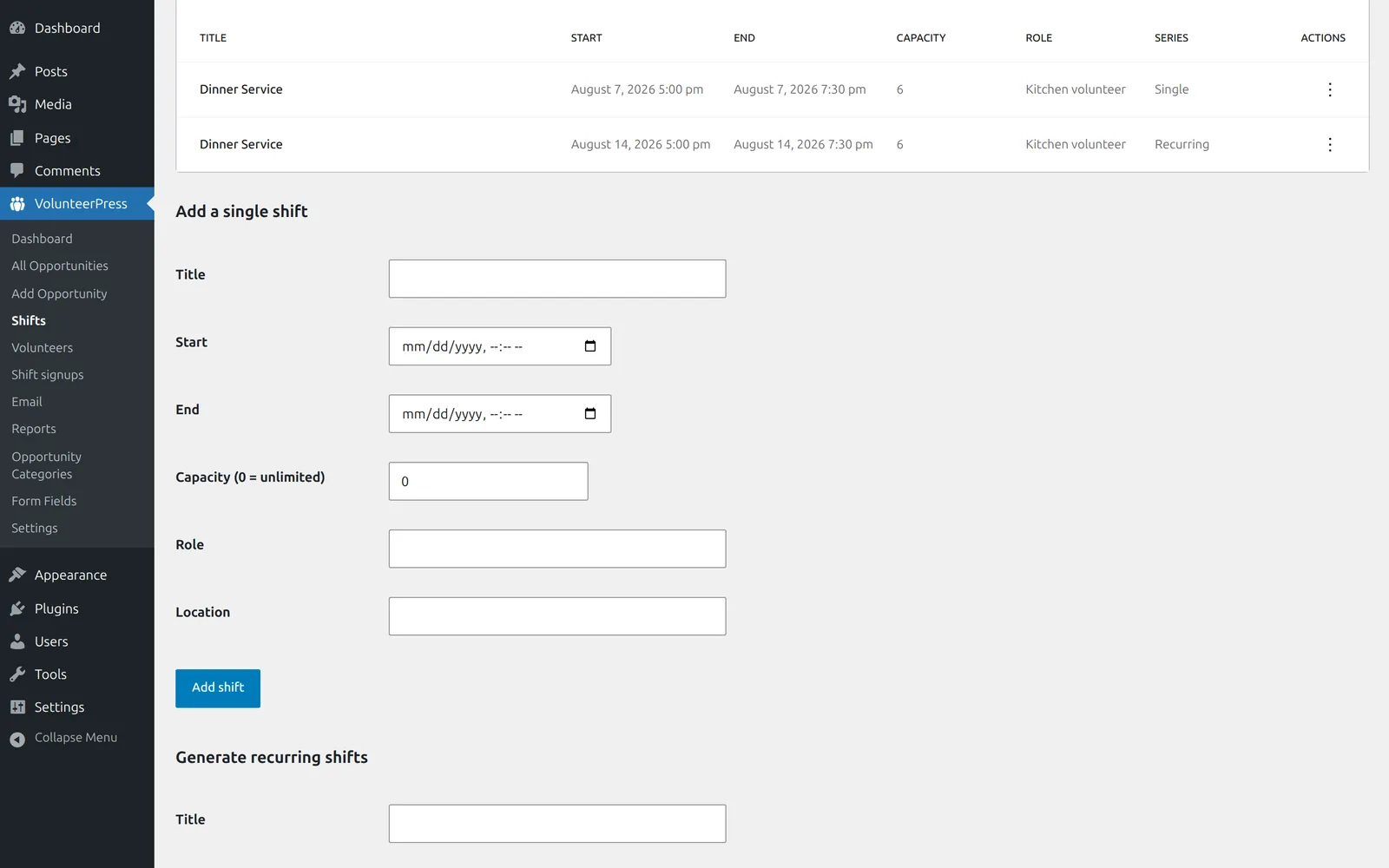
Open VolunteerPress → Shifts and choose an opportunity (or All opportunities to see everything in one list). Two forms sit below the list:
Add a single shift creates one dated slot: Title, Start, End, Capacity (0 = unlimited), Role, and Location. Only the dates are required — an untitled shift simply shows its times. You will see “Shift added.” and the new row in the list.
Generate recurring shifts creates a whole series in one step. Choose a Frequency of Daily or Weekly, how often it repeats, and — for weekly series — which weekdays. Then give it a Start date, start and end times, and either a Number of occurrences or a …or repeat until date; one of the two is required. Every shift in the series gets the same capacity, role, and location, and the list’s Series column marks them Recurring rather than Single.
A generated series is just a set of ordinary shifts — you can edit or delete any one of them without affecting the rest.
Editing a shift that has signups
The Edit action on a shift row opens the same fields the add form has. When volunteers are signed up, the form adds a checkbox — Email signed-up volunteers about this change, checked by default. Volunteers are emailed only if the start, end, or location actually changes; edits to the title, role, or capacity never send anything. Editing a shift keeps every signup attached exactly as it was.
Two edits are worth knowing about in advance:
- Capacity cannot be set below the number of volunteers already confirmed. Raising capacity does not confirm anyone from the waitlist automatically — see Waitlists for how to do that yourself.
- Deleting a shift removes it from your site immediately and cannot be undone. Signup records for it are kept, but they lose their shift details, and no email is sent — if you want volunteers told, cancel their signups first from Shift signups.
Capacity, “Open”, and full shifts
Every shift you create has the status Open, and it keeps that status — including when every spot is taken. Open means the shift accepts signups: while spots remain, volunteers are confirmed; once it is full, the signup button on your site changes to Join the waitlist and new volunteers are waitlisted instead. A full shift is therefore still Open — fullness is shown separately, in the Filled column (“6 of 6”, or Unlimited for a capacity of 0).
The list’s two filters answer the everyday questions: Upcoming only hides past shifts, and Needs volunteers shows the shifts that still have spots to fill. On your site, a shift that has ended shows Ended and stops offering signup on its own — there is nothing to close manually.
If a shift you added does not appear on the opportunity’s page — or a full shift still shows spots — your site is probably serving cached pages: see Changes don’t show on your site.
Next: Managing signups — the volunteers those shifts collect.