An opportunity is the thing volunteers browse: a page on your site with a name and a description — “Community Kitchen”, “Trail Cleanup”, “Front Desk”. Shifts are the dated time slots volunteers actually sign up for, and each opportunity has its own. On this page you create one opportunity, give it two shifts, and look at the result on your site.
Create the opportunity
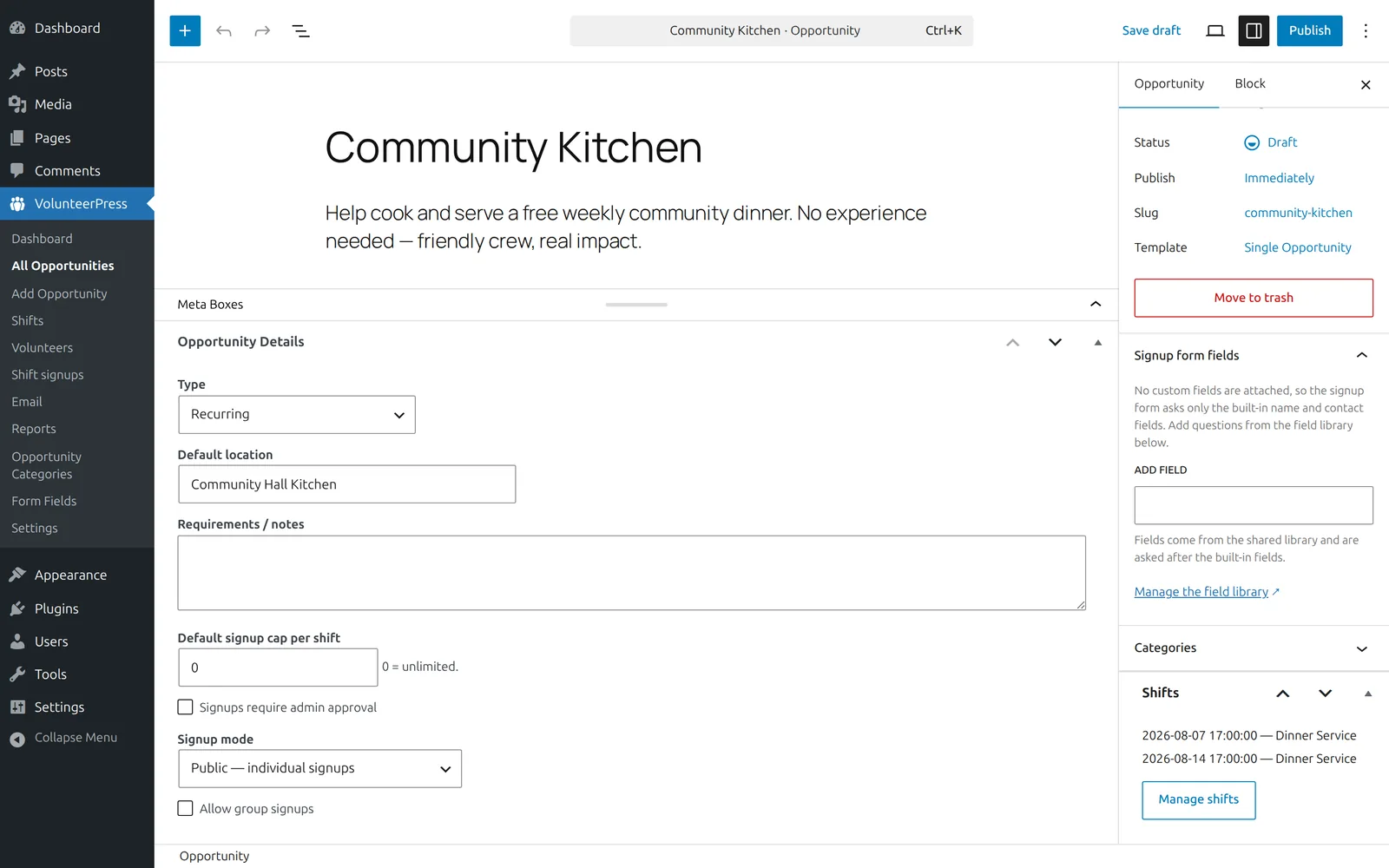
- Go to VolunteerPress → Add Opportunity.
- Enter a title — “Community Kitchen” works for a test — and a sentence or two of description in the editor. The description appears on your site exactly like page content, so headings and images work here too.
- In the Opportunity Details box you can set a location and choose whether the opportunity is one-time, recurring, or ongoing. The defaults are fine for now.
- Select Publish.
Add two shifts
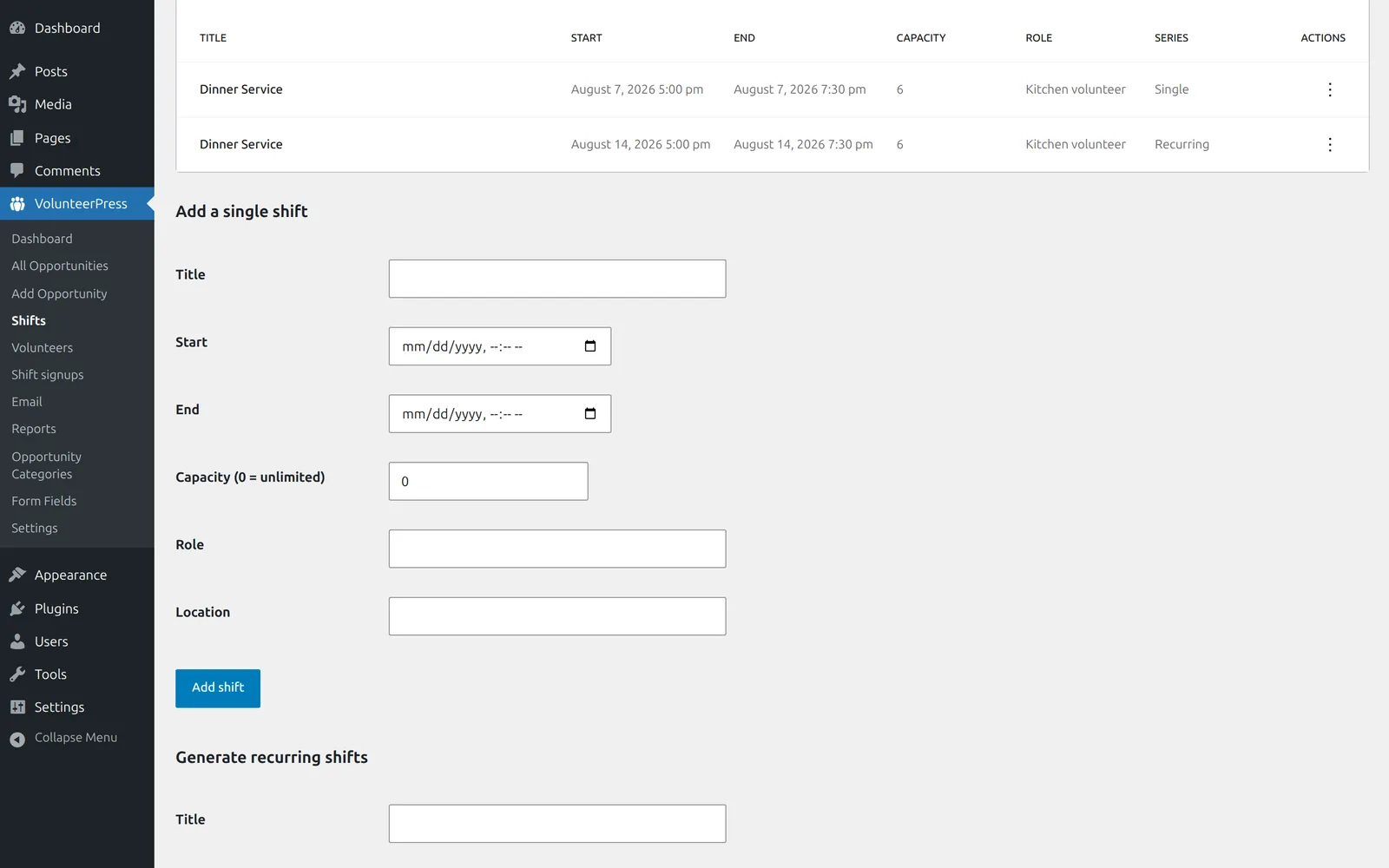
- On the opportunity’s edit screen, find the Shifts box and select Manage shifts.
- Under Add a single shift, fill in a start and end date and time — say, next Tuesday, 5:00 pm to 7:30 pm. Set Capacity to 6 (0 means unlimited). Title, role, and location are optional.
- Select Add shift. You will see the shift appear in the list of upcoming shifts on the same screen.
- Add a second shift the same way — say, the following Tuesday.
The Generate recurring shifts form on the same screen creates a whole weekly or daily series in one step — useful later, covered in Managing opportunities and shifts.
What appears on your site
Every opportunity gets its own page on your site. Open it with the View link on the edit screen. You will see the title and description, then an Upcoming shifts section listing both shifts with their date, time, spots remaining, and a Sign up button:
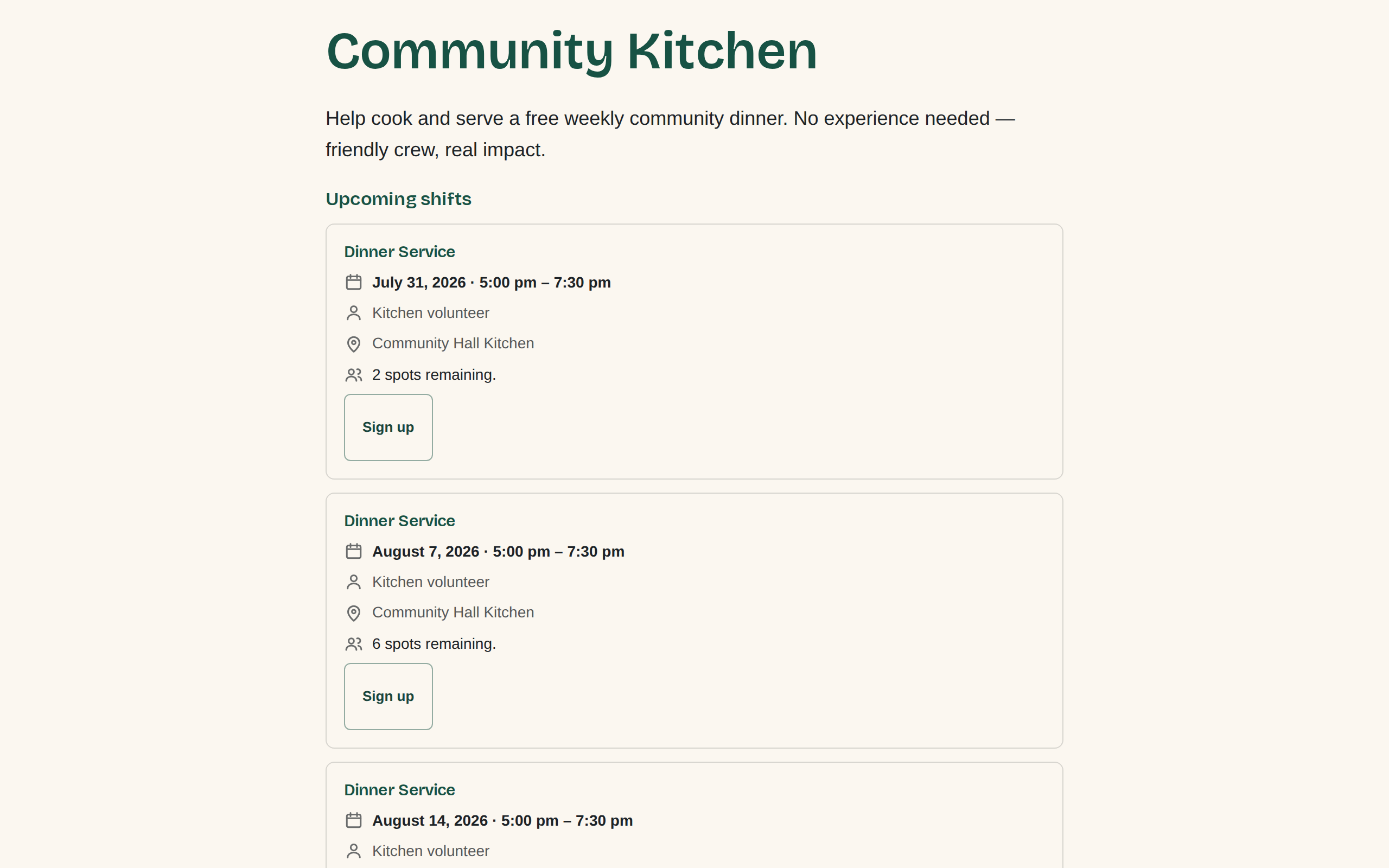
The shift list keeps itself current: past shifts drop off, and when a shift fills its Sign up button becomes Join the waitlist.
Next: Your first signup.